Troubleshooting Tips for USB C to C Cables
USB C to C cables are designed for reliability and efficiency, but sometimes issues can arise. Here are some common problems and troubleshooting tips to help you get the most out of your USB C to C cables:
1. Slow Charging
- Check Power Source: Ensure your power adapter supports the required wattage for fast charging. Using a lower wattage adapter will result in slower charging speeds.
- Verify Cable Specifications: Not all USB C to C cables support high-wattage power delivery. Use a cable that supports up to 100W if needed.
- Inspect for Damage: Look for any visible damage on the cable or connectors, which can affect charging performance.
2. Data Transfer Issues
- Confirm Compatibility: Ensure both devices support the same USB version (e.g., USB 3.1 Gen 2, USB4). Using a lower-spec cable can limit data transfer speeds.
- Try Different Ports: Test different USB C ports on your devices. Some ports may support higher speeds than others.
- Update Drivers: Make sure your device drivers are up to date, as outdated drivers can cause connectivity issues.
3. Connection Problems
- Ensure Proper Insertion: USB C connectors are reversible, but they should be fully inserted to function correctly. Double-check that the connection is secure.
- Clean Connectors: Dust and debris in the ports or on the connectors can interfere with the connection. Use compressed air to clean them if necessary.
- Test with Another Device: To isolate the problem, try using the cable with a different device. If it works, the issue may be with the original device.
4. Cable Not Recognized
- Restart Devices: Sometimes, simply restarting your devices can resolve recognition issues.
- Check for Software Updates: Ensure your device’s operating system and firmware are up to date.
- Try a Different Cable: Test with another USB C to C cable to determine if the problem is with the cable itself.
5. Video Output Issues
- Check Compatibility: Not all USB C to C cables support video output. Ensure your cable and devices support DisplayPort Alt Mode.
- Use Correct Ports: Some devices have specific USB C ports for video output. Refer to your device’s manual to identify the correct port.
- Update Firmware: Ensure your devices have the latest firmware updates, as these can fix video output issues.
6. Intermittent Connectivity
- Test Different Cables: Intermittent issues can often be traced back to faulty cables. Try using a different USB C to C cable to see if the problem persists.
- Check for Interference: Electromagnetic interference from other devices or cables can cause connectivity issues. Try moving your devices away from potential sources of interference.
General Tips for Maintaining USB C to C Cables
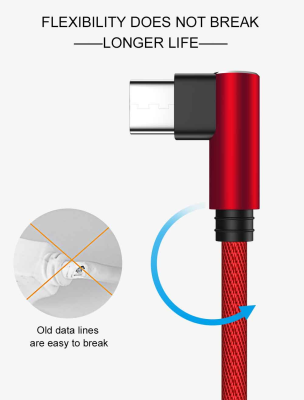
- Avoid Bending: Avoid sharp bends and excessive twisting of the cable to prevent internal damage.
- Store Properly: Store cables loosely coiled and avoid wrapping them tightly around objects.
- Use Protective Gear: Consider using cable protectors or cases to prolong the life of your cables.
Conclusion
By following these troubleshooting tips, you can address common issues with USB C to C cables and ensure they continue to deliver optimal performance. Proper maintenance and using high-quality cables can also help prevent many of these problems from occurring in the first place.